Cricut Design Space 101: Getting Started for Absolute Beginners
Ready to turn your creative ideas into reality with your Cricut machine but not sure where to start? This beginner-friendly online course will take you from confused to confident as you learn how to use your Cricut machine (whether it’s a Maker, Explore or Joy), navigate Design Space, and create simple projects with ease.
Let’s go from “Where do I even start?” to “Look what I made!”—together.
-
Welcome and how to use this course!
Welcome to Cricut Design Space 101! In this short intro, you’ll learn how this course works, what to expect, and how to get the most out of each lesson. You’ll also understand how Design Space is the same across all Cricut machines, with only small differences like mat size and machine features. Settle in, take a breath, and let’s get started.
-
Chapter 1: What is Design Space?
-
Lesson 1: Installing Cricut Design Space
Before we create anything, let’s make sure your setup is smooth.
You’ll learn how to download and install Cricut Design Space on your computer or device, connect your machine, and sign in — with a few pro tips to avoid common beginner hiccups. -
Lesson 2: Your Design Space Tour
Time to explore!
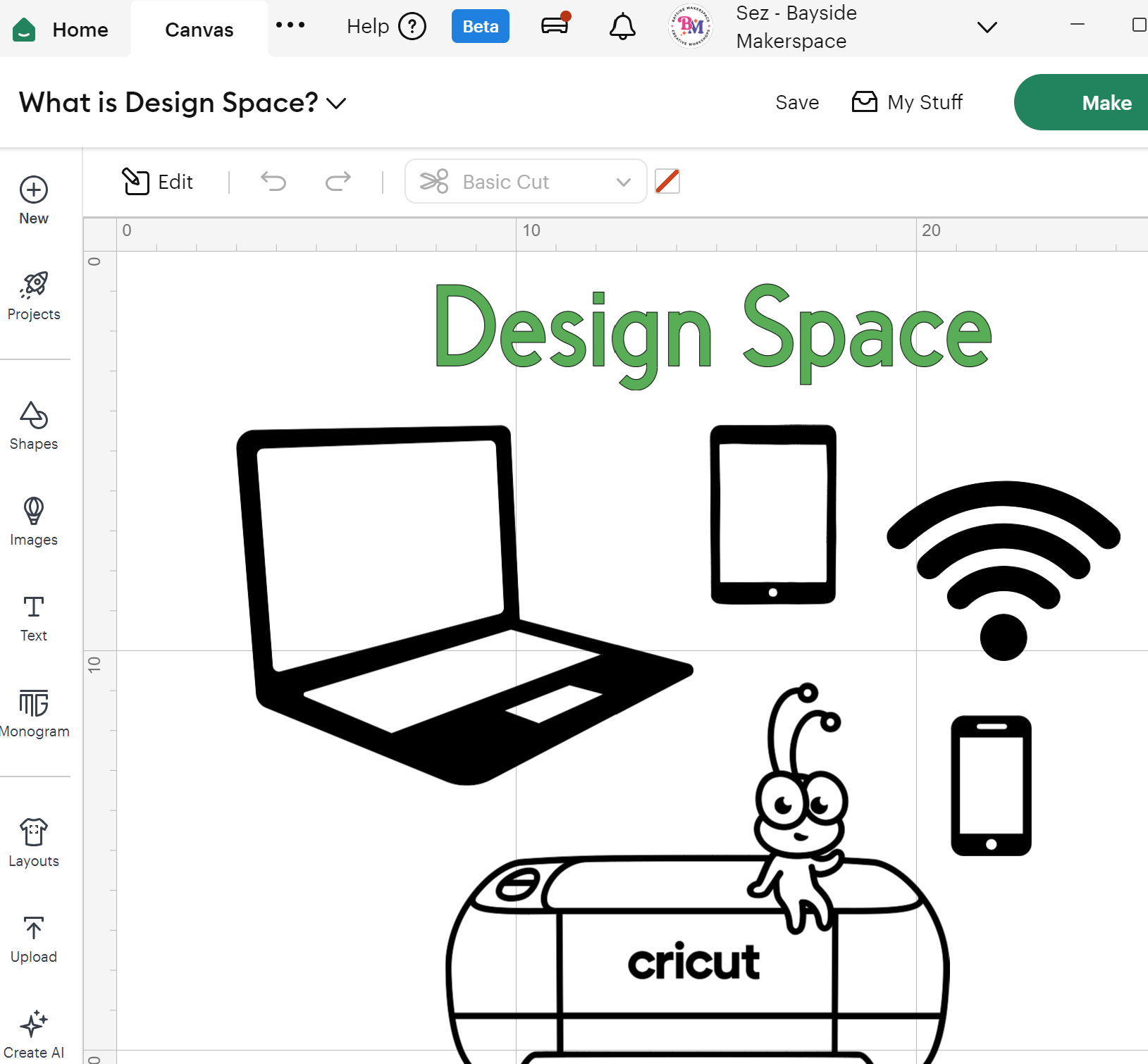
Get a guided tour of the Design Space dashboard so you know exactly where to click and what everything does. We’ll walk through the canvas area, toolbar, design panel, and project browser — so you can stop guessing and start creating. -
Lesson 3: Free vs. Paid (Cricut Access Explained)
What’s free, what’s not, and what’s actually worth it?
We’ll break down the differences between a free Cricut account and a paid Cricut Access subscription — and help you decide whether the upgrade fits your creative goals and budget. -
Lesson 4: Searching for Projects & Designs
Find the perfect design without the scroll struggle.
Learn how to search and filter the massive Cricut library to discover ready-to-make projects, fonts, and images that suit your style — and how to spot which ones are included in your plan. -
Lesson 5: Customising Ready-to-Make Projects
Let’s make it yours.
This lesson shows you how to personalise a pre-made project — changing colours, text, materials, and sizing to match your creative vision. You’ll finish with your first “I made this!” moment. -
Lesson 6: Saving & Organising in “My Stuff”
Never lose your masterpiece again.
We’ll show you how to save your designs in “My Stuff,” create Collections (folders), Bookmarking and reopen your projects whenever inspiration (or a new idea) strikes. -
Lesson 7: Handy Checklists, Shortcuts & Help Hub
Your creative cheat sheet.
Wrap up your learning with downloadable checklists, beginner FAQs, and quick-reference guides to keep beside your machine — plus where to find official Cricut support and community groups when you get stuck.
-
-
Chapter 2: From Canvas to Cut — Bringing Your Design to Life
-
Lesson 2.1: Designing on Your Canvas
Learn how to add shapes, resize, rotate, and arrange your design elements.
We’ll explore how the canvas works as your digital workspace — plus tips for keeping things neat and creative as you plan your first project. -
Lesson 2.2: Previewing Your Mat (Cut Preview)
Before you hit cut, you’ll preview your project on the mat.
We’ll walk through what all the colours and mats mean, how to check placement, and how to adjust your layout to save materials and avoid surprises. -
Lesson 2.3: Connecting to Your Machine
It’s time to introduce your design to your Cricut.
Learn how to connect via Bluetooth or USB, check your firmware, and confirm your machine is ready to go. (Don’t worry, it’s easier than setting up a toaster.) -
Lesson 2.4: Selecting the Right Materials
Vinyl, cardstock, iron-on — they all need different settings!
You’ll learn how to use Browse All Materials, find the perfect cut settings, and bookmark your most-used materials for faster crafting next time. -
Lesson 2.5: Loading Your Mat
Let’s prep for launch.
We’ll show you how to properly place your material, align the mat, and load it into your Cricut. -
Lesson 2.6: Press PLAY!
The best moment — that magic “whirr.”
Hit the flashing Go button and watch your Cricut bring your design to life. You’ll learn how to monitor progress, unload your mat safely, and check for clean cuts. -
Lesson 2.7: Unloading & Removing Your Materials
The big reveal! 🎉
Once your Cricut has finished cutting, it’s time to safely unload your mat and remove your materials without bending, tearing, or curling your design. In this lesson, you’ll learn how to gently peel materials, use your tools to lift delicate cuts, and keep your mat sticky and clean for next time.You’ll finish this step with your first perfectly cut project piece — ready for weeding, layering, or showing off proudly on your desk.
-
Lesson 2.8: Project assembly Hello Spring Mug
You’ll finish this step with your first perfectly cut project piece — ready for weeding, layering, or showing off proudly on your desk.
-
-
Projects
-
You made it through 101! What's Next!
Thank you for learning the foundations of Design Space and Cricut with me! What’s Next?
Sign up to access course!
✂️ Cricut Design Space 101 Getting Started for Absolute Beginners New to Cricut or feeling overwhelmed by Design Space? Cricut Design Space 101 is a calm, step-by-step course for absolute beginners. Learn how to install and navigate Design Space, understand free vs paid content, customise ready-to-make projects, and move confidently from canvas to cut with clear, on-screen guidance. Course demonstration using Desktop version of Design Space applicable to all models of Cricut machines.
Meet your instructor
✳
Meet your instructor ✳

SEZ
Sez - Head Craft-ist & creator of Bayside Makerspace
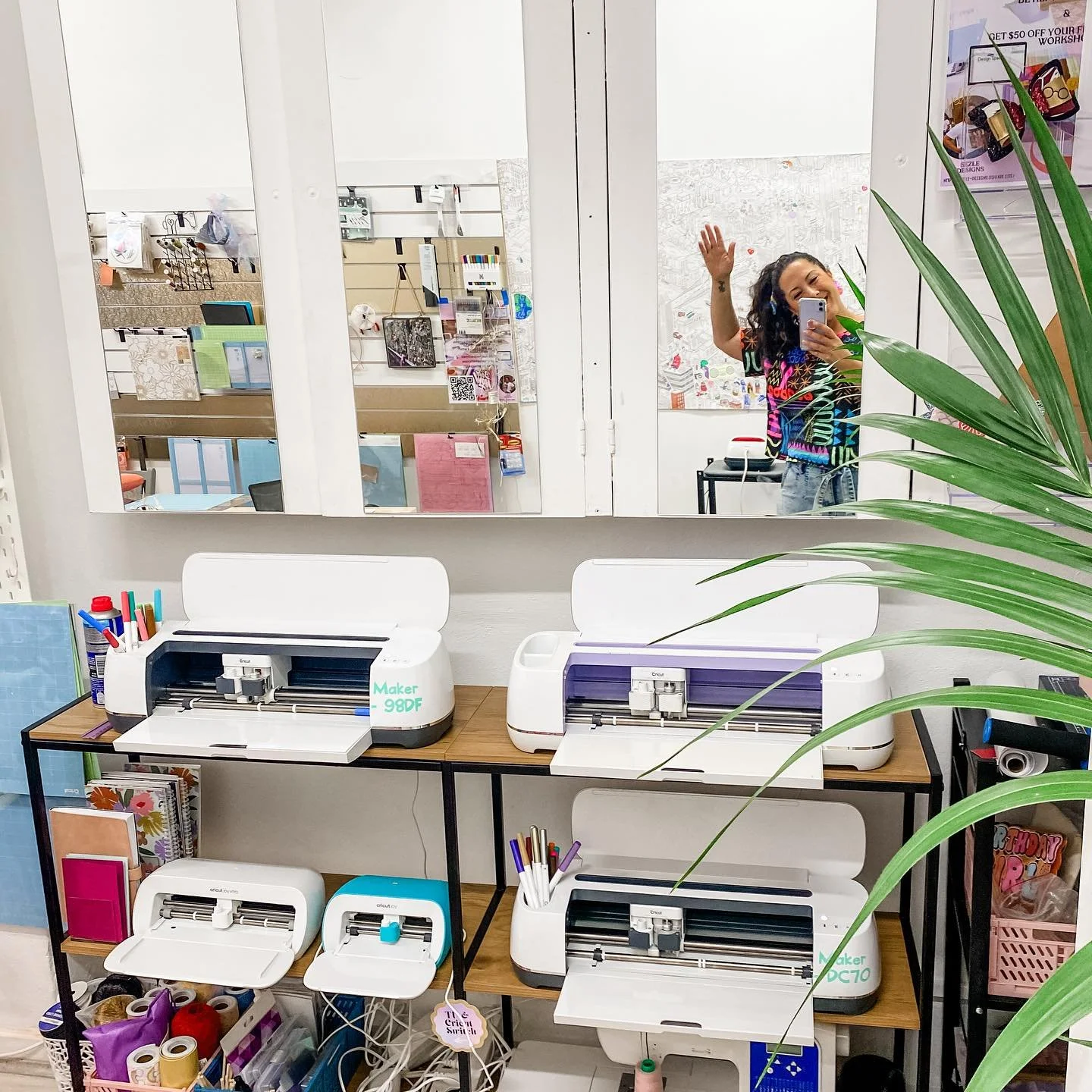
Sez is the heart and soul behind Bayside Makerspace, a vibrant creative hub in Chelsea, where people come together to explore, create, and connect. After leaving her corporate career to follow her passion for creativity, Sez is now dedicated to sharing her love for crafting through a wide range of workshops—from group or private tufting and Cricut to sewing and community building events. She believes in the power of creativity as a means of self-care and personal growth, fostering a welcoming, no-pressure environment where everyone can express themselves and build community.
Whether you're a seasoned crafter or a first-timer, Sez’s workshops are all about fun, learning, and making meaningful connections.